How to Export People Details to a CRM

Instead of downloadin leads into a CSV file, you can directly export the data over to selected CRM such as Hubspot or Salesforce.
Read this article on how to connect The Grid with the selected CRM.
Method 1: Bulk Selection and Export
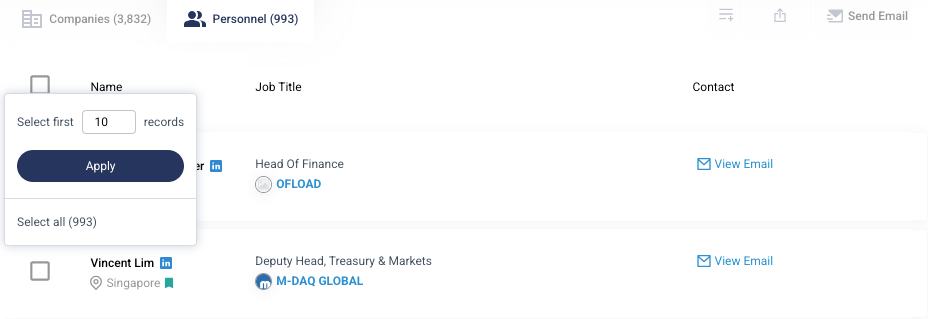
Step 1: After applying filters, click on the checkbox field located at the top corner of the results table. Enter the number of records you wish to export, then click Apply. This follows a first-in order, meaning if you enter "10," the system selects the first 10 records from the results.
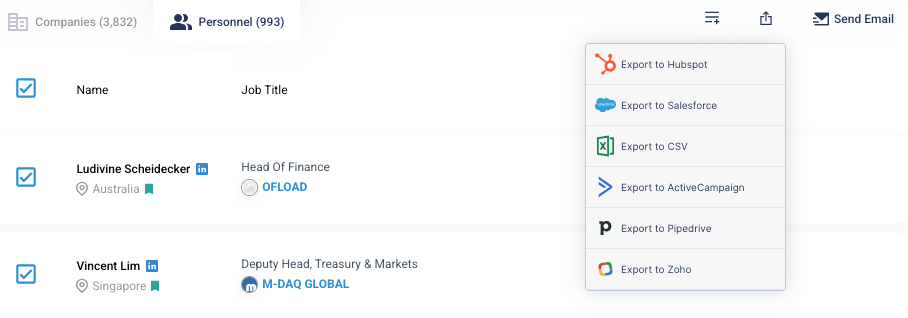
Step 2: Click on the Export icon at the top right of the results table and available CRM to export t such as Export to Hubspot.
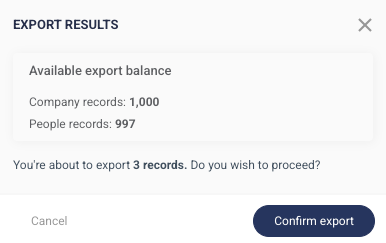
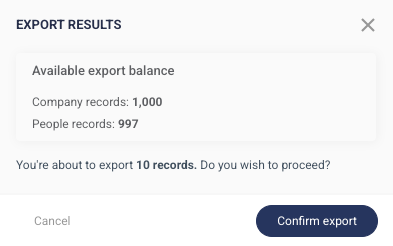
Step 3: A pop-up will appear showing your remaining credits and the total credits that will be deducted. Click Confirm Export if you wish to proceed.
Method 2: Selecting Personnel Individually
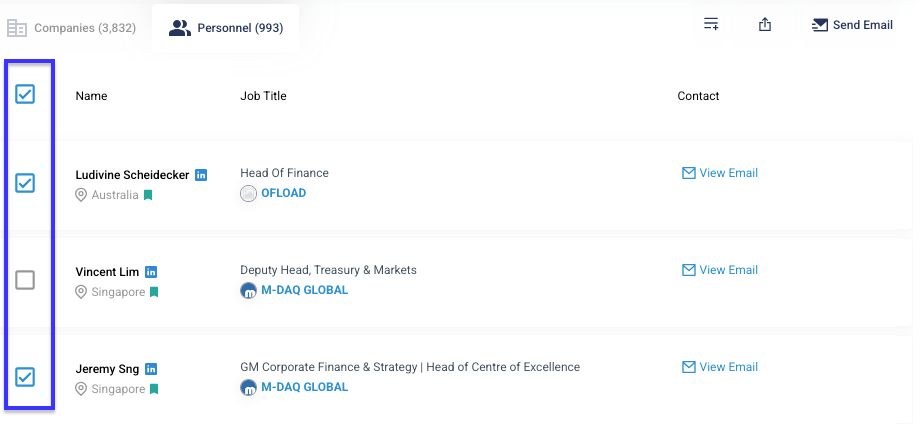
Step 1: If you want to export only specific records, apply filters and review the personnels. Click on the checkbox next to each record you want to export.
Step 2: Click on the Export icon at the top right of the results table and select your preferred CRM to export to.
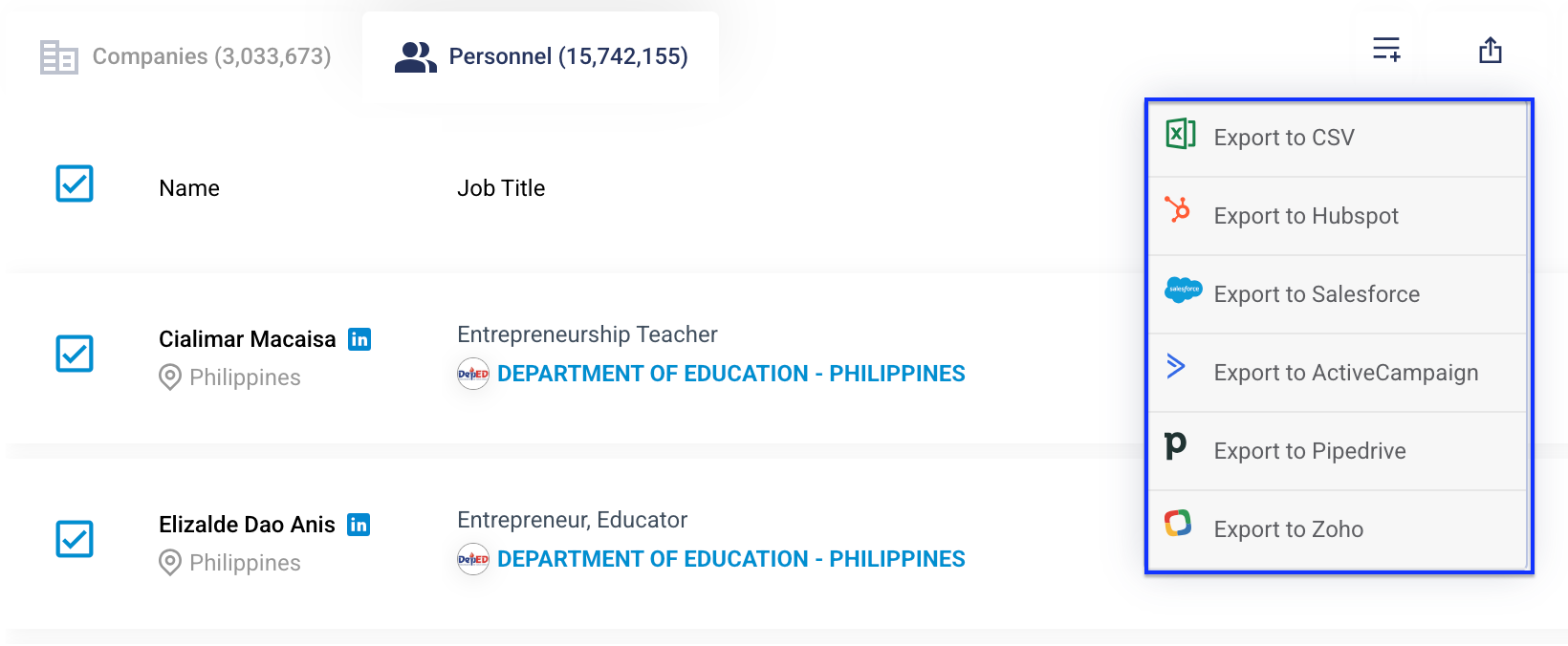
Step 3: A pop-up will appear showing your remaining credits and the total credits that will be deducted. Click Confirm Export if you wish to proceed