How to Export a List of Selected Personnels in bulk?

To export a list of selected personnel in bulk, the easiest method is to add them to a Personnel Shortlist.
There are a few flows you can follow.
Flow 1 (Shortlisting from personnel tab)
- In the Discovery tab, apply all the necessary filters, including the People filter, to ensure the results are as closely aligned with your needs as possible.
- Navigate to the Personnel tab.
- Select personnel by either:
- Clicking the checkbox at the top of the header to select all personnel in bulk, or
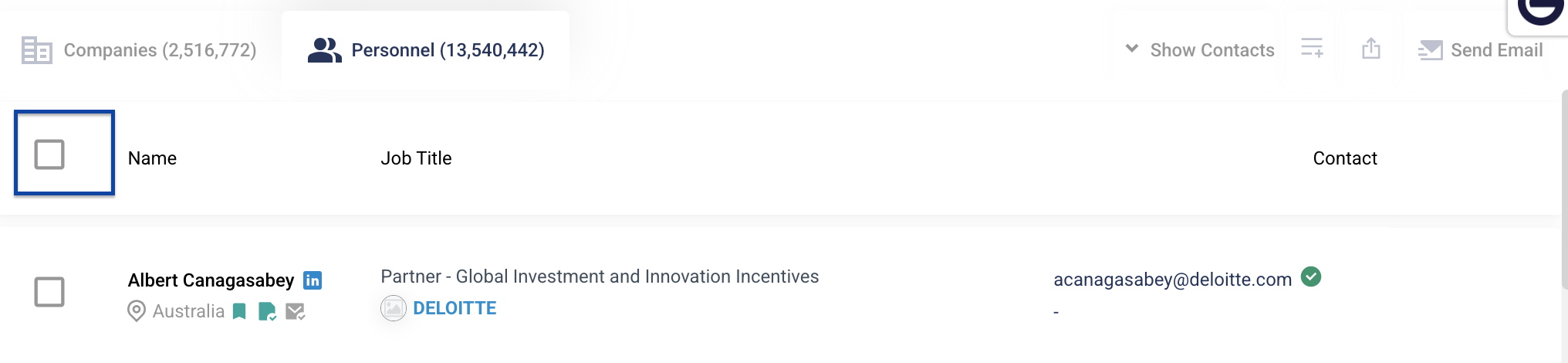
- Selecting individual personnel by clicking the checkbox next to each name.
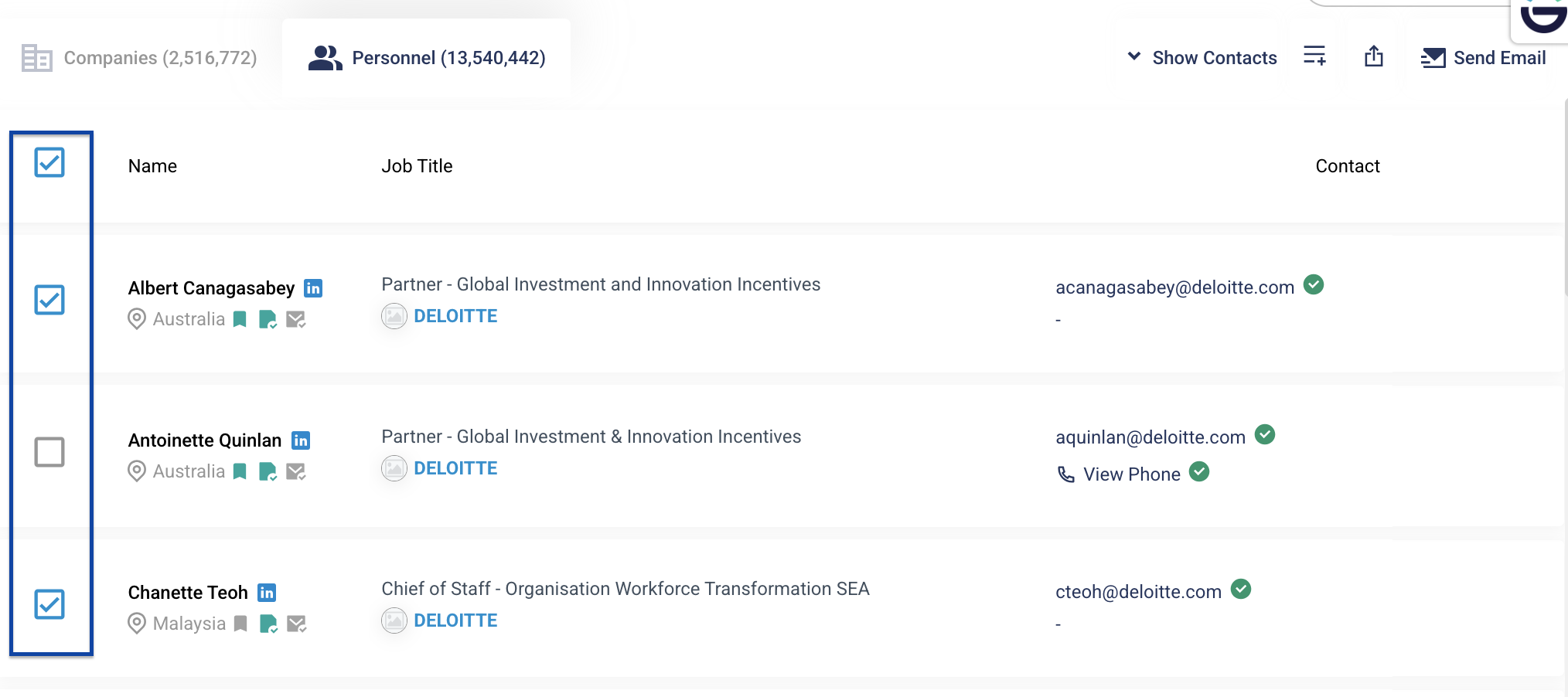
- Once you have completed with the selection, click on the Shortlist icon to add the records into an existing or new list.

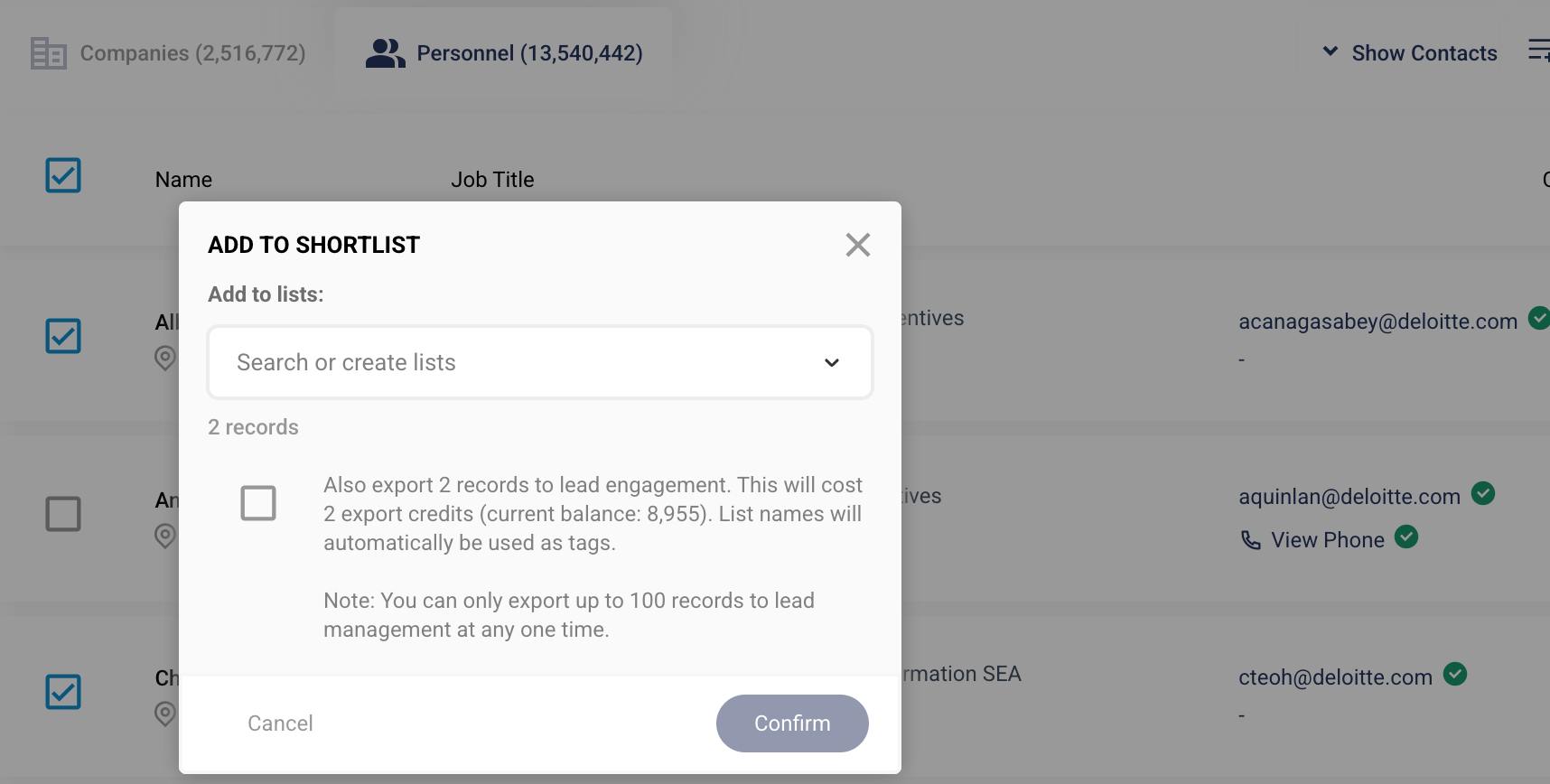
- Once you have finished shortlisting the personnel of your choice, navigate to the Shortlist.
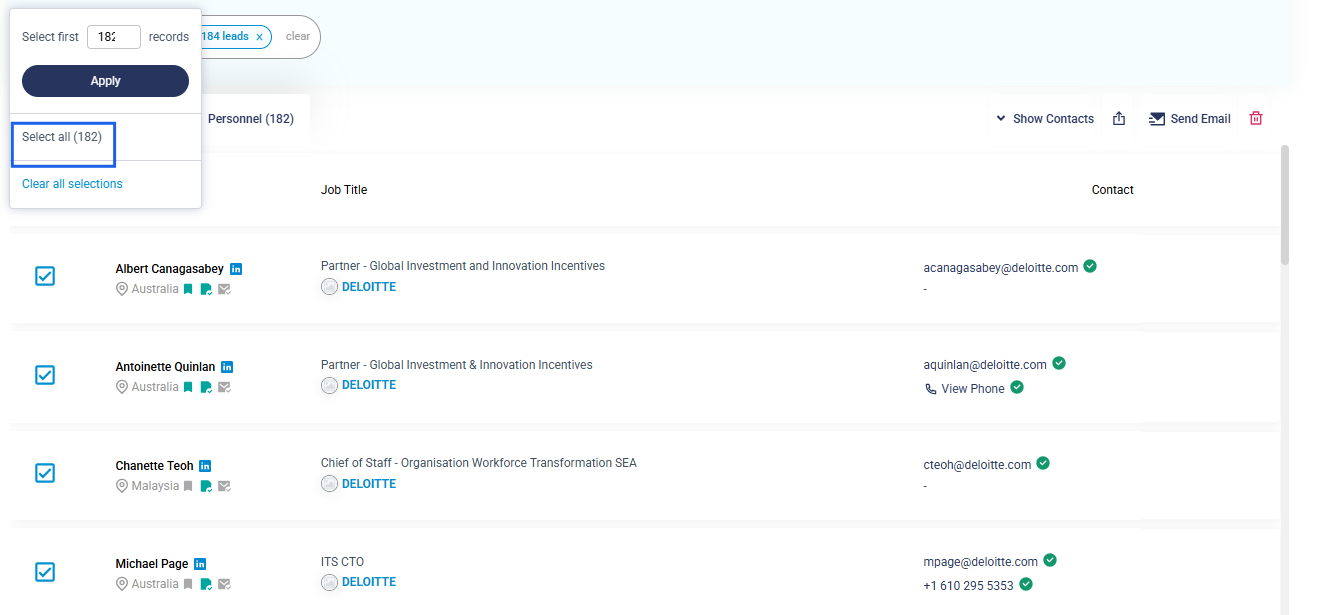
- In the Shortlist, click Select All to export the selected personnel.
Flow 2 (Shortlisting from Company profile)
- In the Company Profile, scroll down to the People section.
- Apply the People filter relevant to your search.
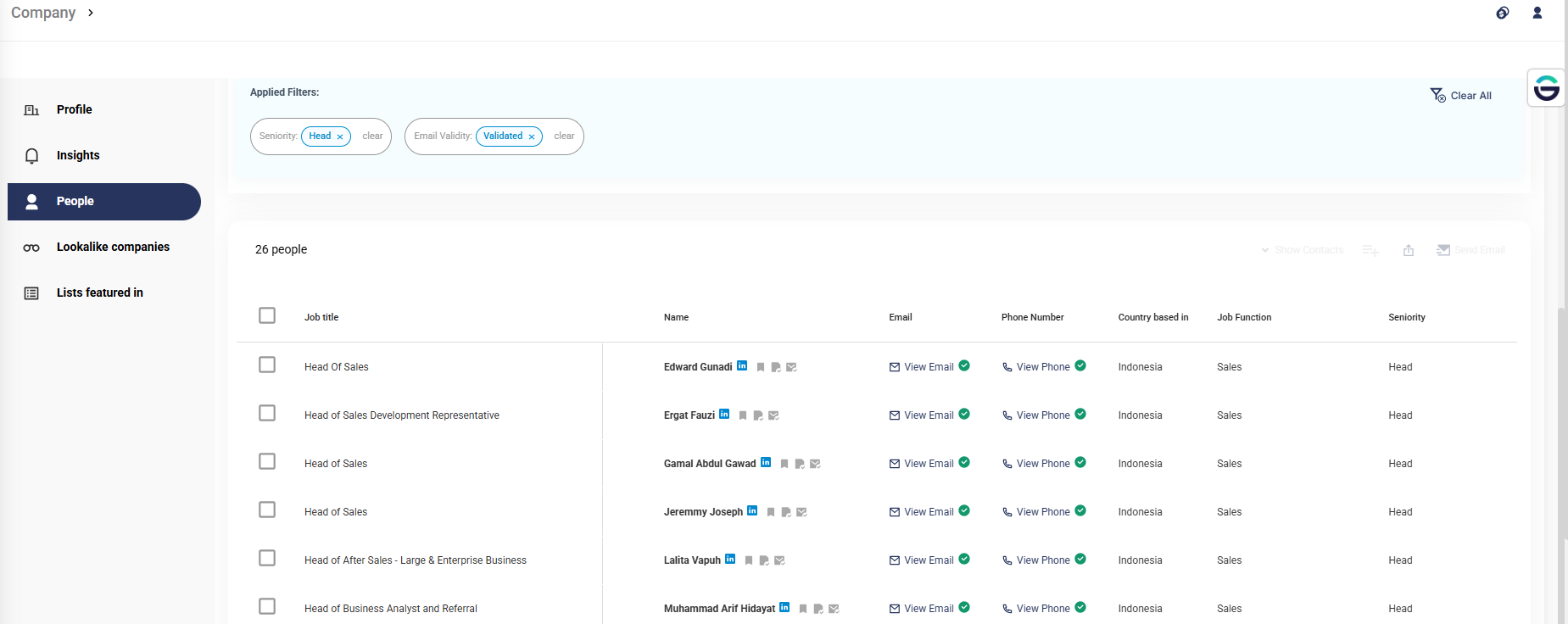
3.Select the personnel you want to add by clicking the checkboxes, then click Export to Shortlist.
4. Repeat Steps 1 to 3 if you have more companies in mind.
5. Once you have finished shortlisting the personnel of your choice, navigate to the Shortlist. A panel will appear on the right with all of your shortlists then select a shortlist of your choice.
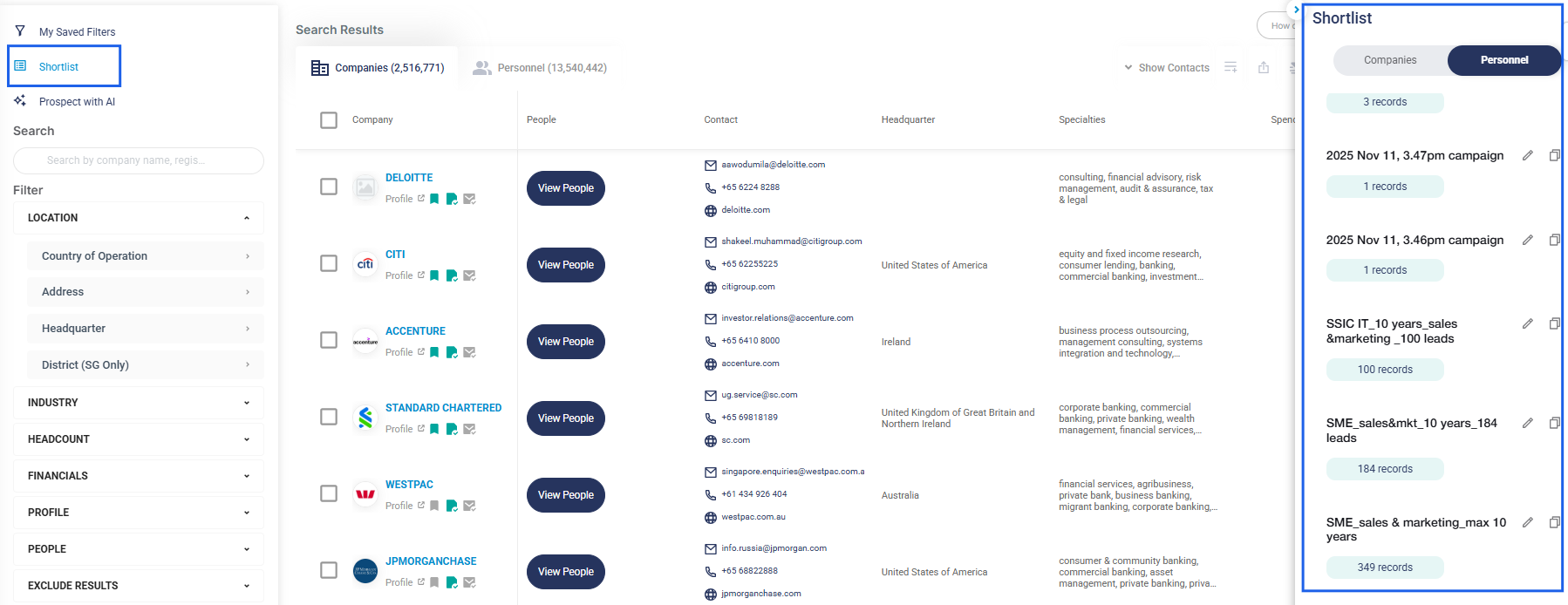
6. In the Shortlist, click Select All to export the selected personnel.